How to Convert a Static Website to a CMS
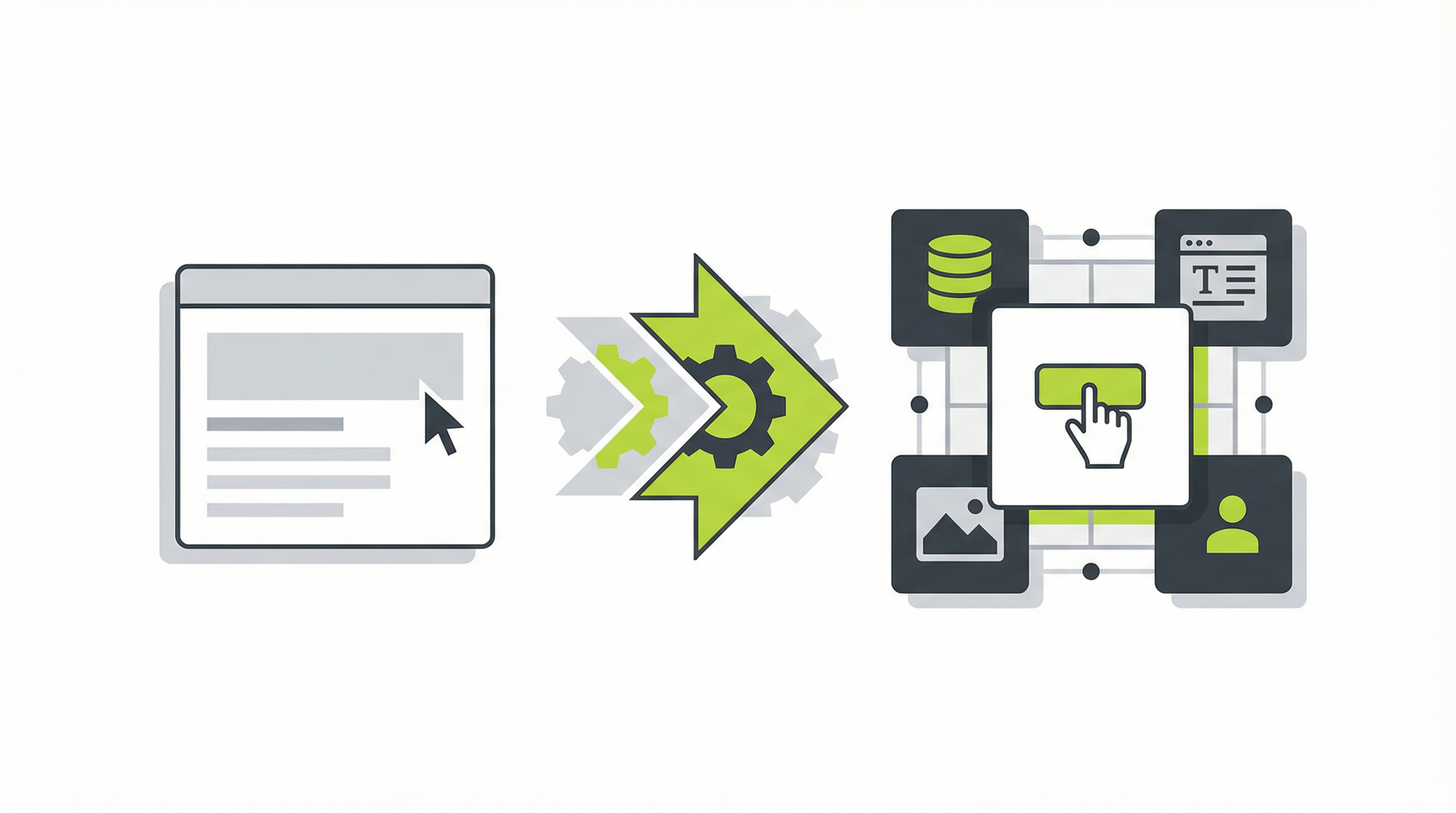
''' So, you have a website. Maybe you built it yourself using pure HTML and CSS, or perhaps you used an AI website generator to get a stunning design quickly. It looks great, but you've started to hit a wall. Every time you want to update a piece of text, add a new blog post, or tweak your SEO settings, you find yourself digging through code or realizing you don't have the control you need. This is a common frustration with static websites, and the solution for long-term growth and flexibility is to convert that static website to a CMS. A Content Management System (CMS) like WordPress empowers you to manage your site's content without ever touching a line of code, giving you the freedom to scale your online presence.
Why Bother Converting Your Website?
The initial appeal of a static website is its simplicity and speed. However, for any serious business, this simplicity quickly becomes a major limitation. The inability to easily update content, add new pages, or manage SEO metadata can severely hamper your marketing efforts. Handing off a static site to a client can also be a nightmare, as they are left with a digital asset they cannot manage themselves. This is where the power of a CMS becomes undeniable. By migrating from a static website to a CMS, you unlock a world of functionality. You gain the ability to schedule posts, integrate powerful plugins for everything from e-commerce to advanced analytics, and allow non-technical team members to contribute content safely and easily. It transforms your website from a rigid brochure into a dynamic marketing engine.
The Traditional Path: How to Convert a Static Website to a CMS
Manually converting a static website to a CMS is a multi-step process that typically requires technical expertise. While the exact steps can vary depending on the CMS you choose, the general workflow involves a fair bit of development work.
-
Choose Your CMS: The first step is selecting the right platform for your needs. WordPress is the most popular choice, powering over 40% of the web, but other options like Drupal, Joomla, or headless CMS platforms also exist. Your choice will depend on your specific feature requirements and technical comfort level.
-
Set Up a Hosting Environment: A dynamic CMS requires a server with a database (like MySQL) and a server-side programming language (like PHP). You'll need to set up a hosting account that meets the requirements of your chosen CMS.
-
Deconstruct Your Static Site: You need to break your existing HTML, CSS, and JavaScript files into reusable components. This means identifying the header, footer, sidebars, and content areas that will become part of your CMS theme. This is a crucial step in the HTML to CMS conversion.
-
Build Your CMS Theme: This is the most intensive part of the process. You will need to take your deconstructed HTML and convert it into the theme structure of your chosen CMS. For WordPress, this involves creating PHP files like
header.php,footer.php,index.php, andstyle.css, and using WordPress-specific functions to make the content dynamic. If you're looking for more information on this, you might find it helpful to learn about making a static website editable [blocked]. -
Migrate Your Content: Once the theme is built, you must manually copy and paste the content from your old static pages into the new pages and posts within your CMS dashboard. This can be a tedious process, especially for larger sites.
-
Test and Deploy: Before going live, you must thoroughly test everything. Check all your links, ensure your styles are loading correctly, and confirm that all dynamic content is pulling through as expected. Once you're confident, you can point your domain to the new CMS-powered site.
Pro Tips for a Smoother Transition
If you decide to take the manual route, a couple of things can make the process a bit smoother. Before you begin, perform a content audit to decide which pages are worth migrating and which can be retired. This is also a great time to plan your URL structure for better SEO. After the migration, it is essential to implement 301 redirects from your old URLs to your new ones to preserve your search engine rankings. For those considering this path, understanding the best way to convert an HTML site into an editable one [blocked] is a great starting point.
The Smarter Way: Automate with ConvertCMS.ai
Reading through those steps, you might be thinking there has to be a better way. Manually converting a static website to a CMS is time-consuming, expensive if you hire a developer, and prone to errors. This is precisely the problem ConvertCMS.ai was built to solve. Our platform takes the complexity out of the entire process.
Instead of spending days or weeks wrestling with code, you can simply provide ConvertCMS.ai with your AI-generated or static HTML website, and our powerful engine will automatically convert it into a fully editable, premium WordPress theme. We handle the deconstruction, theme building, and content migration for you. This automated HTML to CMS process is not only faster but also ensures a high-quality, bug-free result. You get all the benefits of a dynamic CMS without any of the development headaches. You can finally update text, add pages, and control your SEO with a few clicks. For those who need a complete solution, our static website conversion service [blocked] offers a comprehensive answer.
Your website should be a tool for growth, not a technical burden. If you're tired of the limitations of your static site, it's time to make a change. Stop struggling with code and unlock the full potential of your online presence. Let ConvertCMS.ai handle the heavy lifting of converting your static website to a CMS. Sign up today and experience the freedom of a truly editable website. '''